
Setting Up Default Contacts
Suppose you want your sales quotes and order confirmations to be sent by default to the buyer of your client, the sales invoices should be addressed by default to the Financial Administration department of the client, and your sales delivery notes to the Shipping department. You can easily set this up yourself. Follow this step-by-step plan to assign a default contact person to your sales-related process documents and also automate the salutation.
Step 1. Go to the Contacts tab
Open the client card of the client and go to the 'Contacts' tab. Here you will find the contact person records of this client. Optionally, use the Preview view button
to hide the report preview.
Step 2. Make a contact person a default contact person
Double-click in the list before a contact person record to go to the contact person maintenance. At the bottom, you will find the 'Default contact person' group with two columns. In this group, you can see at a glance for which of your process documents this contact person is the default contact person. Optionally navigate to the other contact persons as well.
The checkboxes in the 'Sales' column are used if the client is a debtor (or becomes one), in the 'Purchase' column if the client is a creditor (or becomes one). If your client is both a debtor and a creditor, you use both columns. Now, check the boxes per contact person record for the process documents that should be sent to this contact person by default (Sales) or should come from this contact person (Purchase).
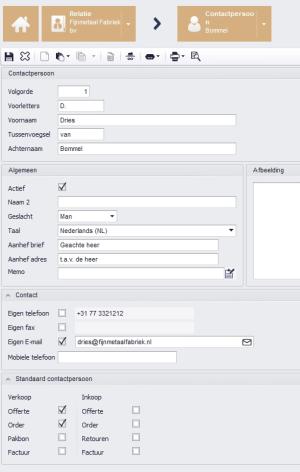
In the above image, you see the contact person 'Bommel'. Under 'Default contact person', there are two checkmarks. What does this mean? This contact person will be used by default as soon as a sales quote (report 8400) or a sales order confirmation (report 8401) is created for this client.
Click on Save
Step 3. Navigate to another contact person
Via the navigation bar, you can quickly and easily navigate to any other contact person of this client. Click on the dropdown indicator next to 'Contact person' and select the desired contact person.
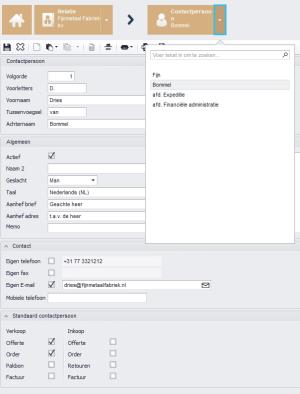
The default contact person for your sales delivery note (report 8402) is the contact person 'Shipping dept.'. Select this contact person and check the 'Delivery note' box in the 'Sales' column. Navigate to the contact person 'Financial Administration dept.' to set this contact person as the default contact person for your sales invoices (report 8403); check the 'Invoice' box there.
Click on Save
Step 4. Navigate to the Client
Via the navigation bar, you return to the Client. On the 'Contacts' tab, the checkboxes per contact person record are checked for which document this contact person is the default contact person.

The address field of each newly created sales quote, sales order confirmation, sales delivery note, and sales invoice will be automatically populated with the contact person details you have entered for the client. You can manually adjust these details in each quote, order, delivery note, and invoice.
 |
Only one checkbox can be active for one contact person. If you check a box that is already active for another contact person, MKG will automatically uncheck the box for that other contact person. |
|
Knowledge Center | Related: |
- Published:24 feb 2026 23:15
- TypeHandleidingen
- Category
- Product
- AvailabilityOpenbaar