
How to Create an Action Item?
|
The 'Activities' tab has an interactive layout. Every appointment you make with MKG or that is made by your colleague for you is found here as an activity. Whether it concerns an appointment with an MKG consultant, an action within the implementation plan, or a course. You can also add your own action items here. |
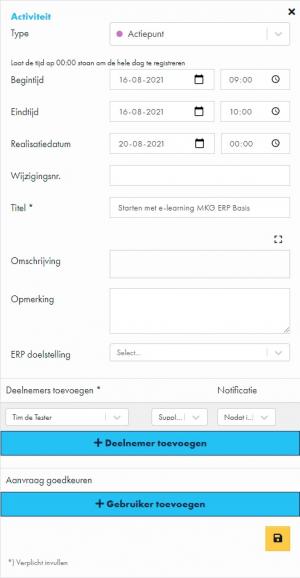
You first start a new activity above the calendar. The detailed information about the activity becomes visible on the right side of your screen. By default, 'Action Item' is preselected as the type.
Step 1. Select the Type
The first step is always selecting a type. Select - if necessary - the type 'Action Item'. If you want to perform the action on a day other than today, choose a start and end date and a start and end time for this activity. Optionally, select a realization date.
Step 2. Give the Action a Title
A title for this type of activity is mandatory. You have space to add a description and to place a remark.
Step 3. Add One or More Participants
The presence of one or more participants is mandatory for this activity. As the requester, you are by default added as a participant to this activity, and your company name is also prefilled. Choose whether or not to receive a notification during the process of this request.
Via the Add Participant button, you can optionally add a colleague to this activity. Here too, you choose whether this person receives a notification.
The presence of one or more users is not mandatory for this activity. Users are the persons who need to approve the appointment. As the requester, you are by default added as a user to this activity, and your company name is also prefilled.
Via the Add User button, you can optionally add a colleague who must approve this activity.
Step 4. Submit
All participants and users added? Click Submit. The detailed information of this activity will then disappear from your screen. The created item will be displayed in your calendar on the date you have chosen. By clicking the item in the calendar, you can open the activity again.
What’s Next
You have full control over this activity. After creation, you can modify an action item by, for example, adding participants or users, or you can delete it again.
- Published:24 Feb 2026 23:12
- Latest update:25 Feb 2026 00:12
- TypeHandleidingen
- Category
- Product
- AvailabilityOpenbaar