
How to check the period division
Step-by-step plan 'Check Period Division'
Within the Periods module you manage the accounting periods. After opening the module, you will immediately arrive at the screen with the period layout. Select - if necessary - the newly created fiscal year.
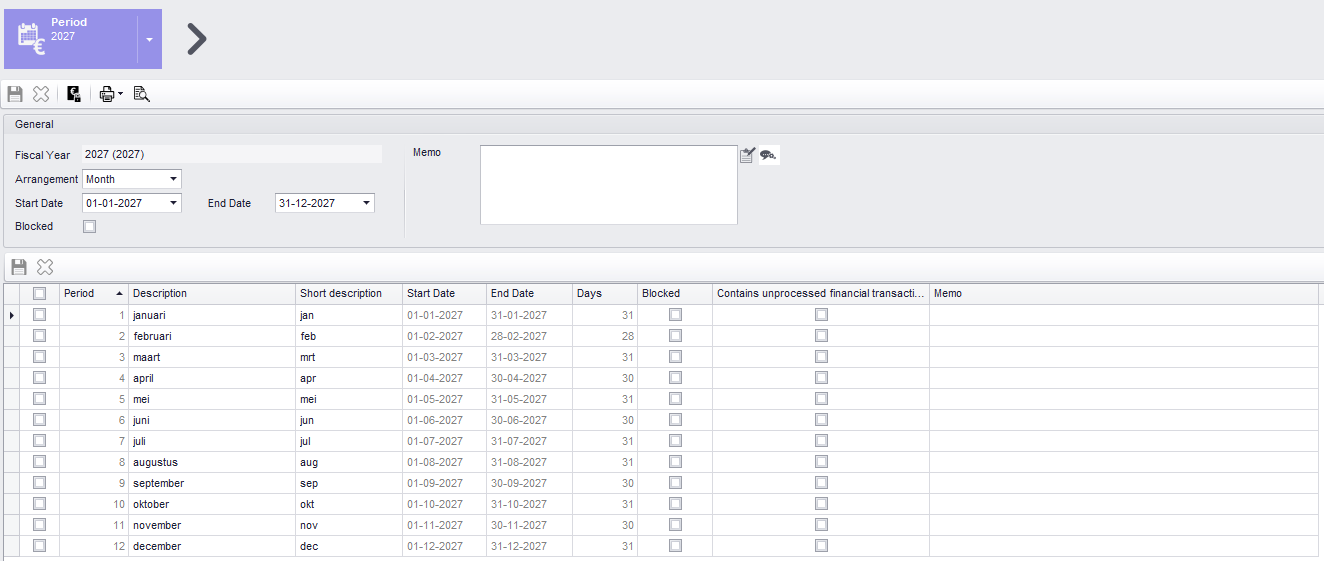
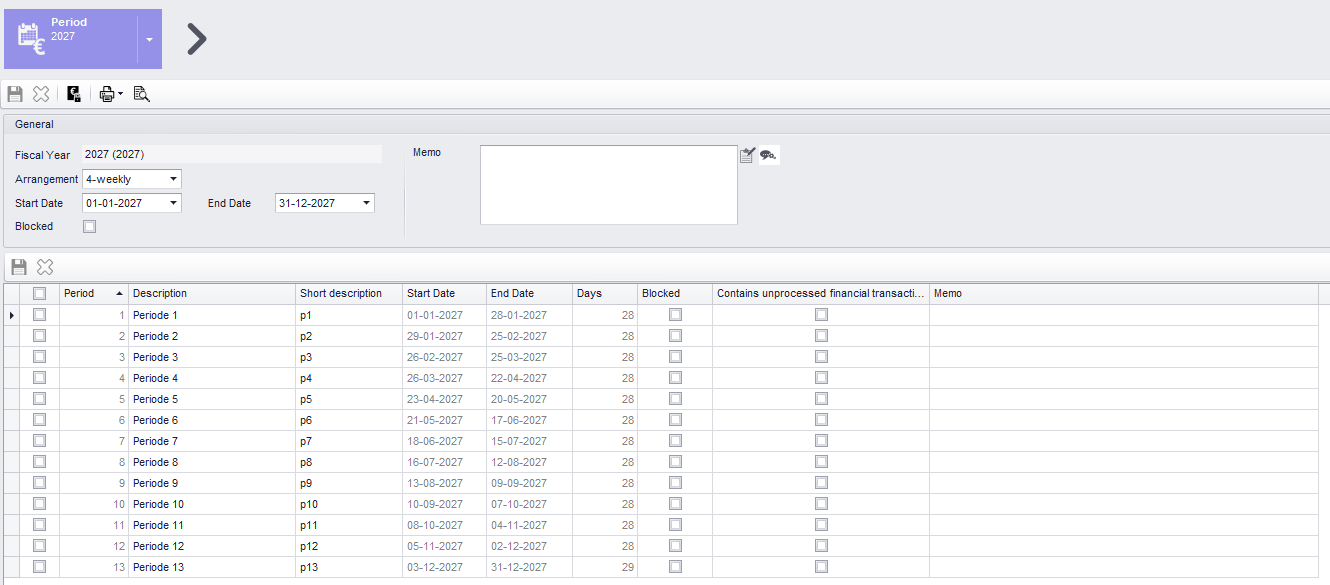
Check the period division of the new fiscal year. MKG offers 3 options for a period division: monthly, 4-weekly, or manual. Adjust the current division if needed in the field Division based on.
A monthly period division looks as follows:
 ×
A 4-weekly period division looks as follows:
 ×
Have you made changes on the screen? Then click Save to preserve the adjusted layout.
Multiple administrations?
You open fiscal years per administration. If you use more than one administration, you must perform this action for each administration.
Fiscal Year Transition Checklist
Administrative bookings in MKG are divided into fiscal years. In addition, MKG has many fiscal year-dependent tables. To ensure a smooth fiscal year transition, you must perform one or more actions each year. Using our checklist, you can do this easily and quickly.
Fiscal Year Transition Checklist- Published:19 Nov 2026 10:09
- Latest update:19 Nov 2026 11:11
- TypeHandleidingen
- Category
- Product
- AvailabilityOpenbaar