
How to Register Users for a Course?
|
On the 'My Data' tab, you will find everything about and for your company. Here you manage the licenses for your employees and order the hardware you need. You can also easily manage the Mijn MKG accounts for yourself and your colleagues here. The 'Activities' tab has an interactive setup. Every appointment you make with MKG or that your colleague makes for you can be found here as an activity. Whether it concerns an appointment with an MKG consultant, an action as part of the implementation plan, or a course. You can also add your own action points here. |
Create Participant Accounts
1. Go to the 'My Data' tab in Mijn MKG

2. Go to 'User Management'
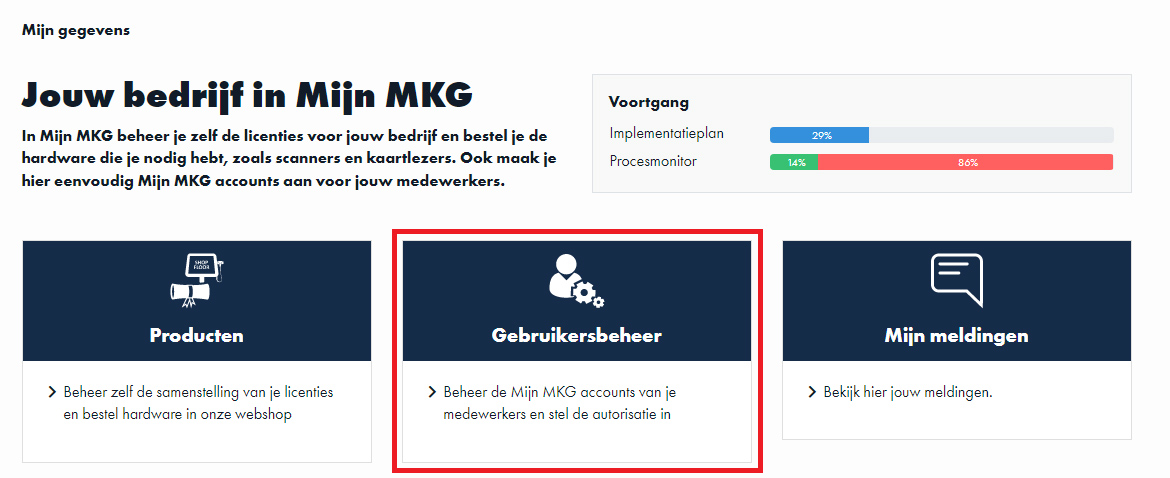
3. Go to 'Invitations'

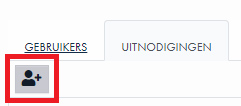
4. Click on the following icon:
5. A pop-up screen will appear. Enter the details of the participants here and choose the user group 'Participant'.
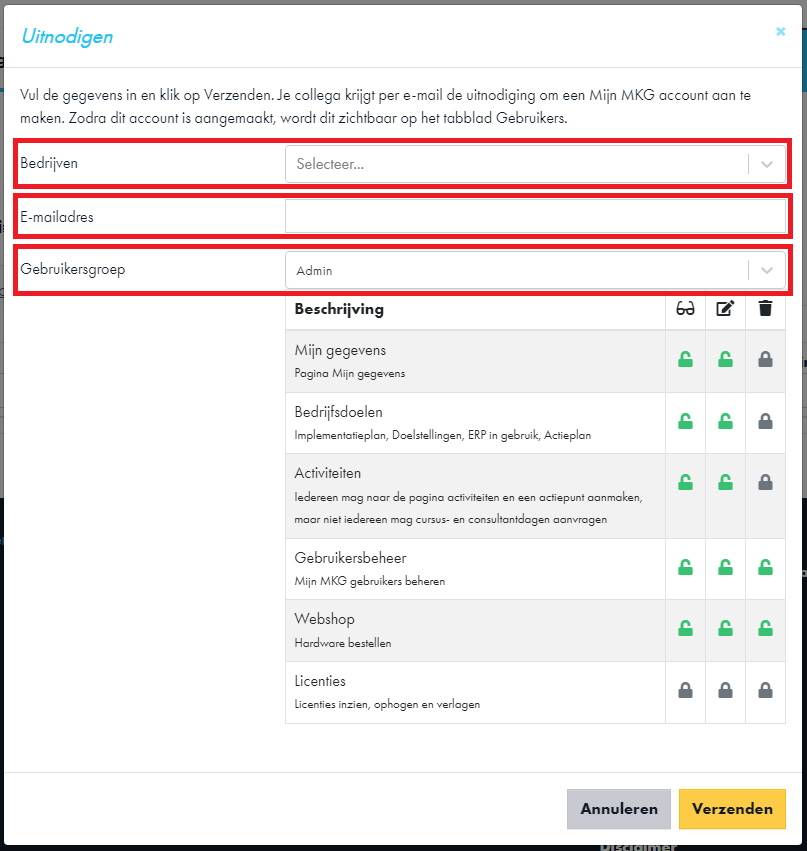
6. Press Send.
7. Have you done this for all participants? Then go to the 'Activities' tab.

Register Participants
8. Click NEW above the calendar.
9. The Detail opens on the right side of the screen.
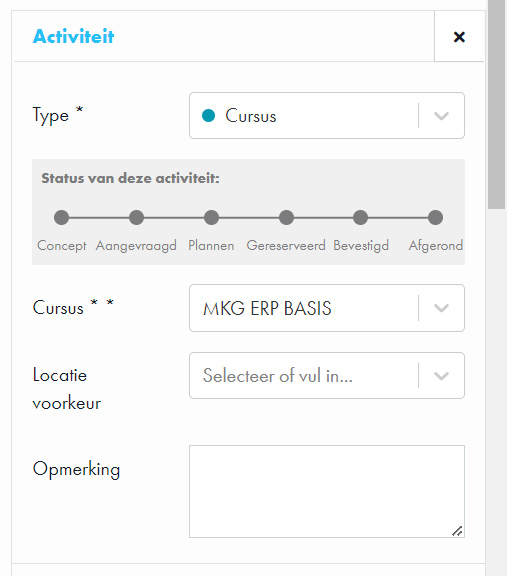
| Type: | You can leave it as course. |
| Course: | Choose which course you want to register participants for. |
| Location Preference: | Select your preferred location for the course. You can choose between Hengelo or Eindhoven. |
| Note: | Here you can add comments for the course planning (for example, you can indicate your preference for the day). |
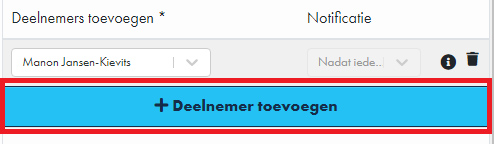
10. Press the blue button 'Add Participants' and enter the participant's name
For Notification, indicate when the participant should receive a notification in their mailbox. We recommend choosing 'After everyone has agreed' to limit the number of emails participants receive.
11. Click Request.
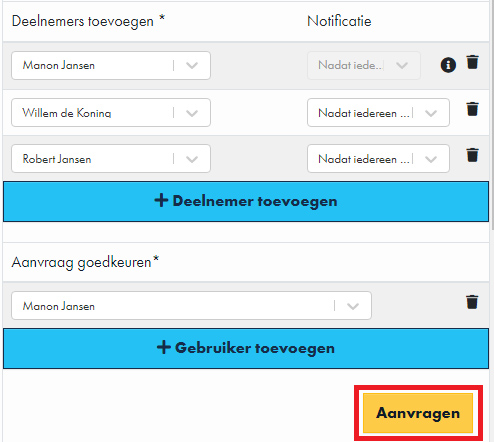
The course has now been requested. MKG will propose a schedule. You will receive an email about this.
- Published:24 feb 2026 23:23
- TypeHandleidingen
- Category
- Product
- AvailabilityOpenbaar